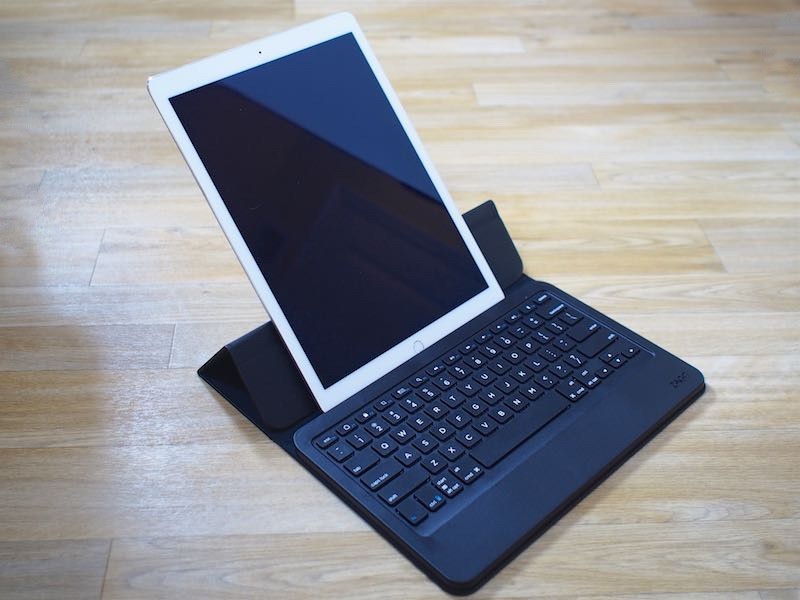
Demystifying iPad Keyboard Connections: Smart Connector, Bluetooth, and USB-C Explained
Struggling to unleash your iPad's full potential as a productivity powerhouse? For many, the missing piece is a physical keyboard. While the on-screen keyboard is convenient for quick taps, extended typing sessions demand the tactile feedback and speed of a dedicated accessory. Over 70% of new iPad keyboard users find the initial setup confusing, but the good news is, connecting a keyboard to your iPad is incredibly straightforward once you understand the three primary methods: the intuitive Smart Connector, the versatile Bluetooth wireless pairing, and the reliable USB-C adapter connection. This comprehensive guide will walk you through each method, offering step-by-step instructions, practical tips, and troubleshooting advice to get you typing in under two minutes.
Whether you're drafting emails, writing reports, or just chatting, a keyboard transforms your iPad experience. Let's explore each connection type so you can choose the best fit for your device and workflow.
Method 1: Instant Productivity with the Smart Connector Keyboard
For ultimate simplicity and a seamless experience, keyboards utilizing Apple's Smart Connector are unmatched. These keyboards, such as Apple's own Smart Keyboard Folio or Magic Keyboard, connect through a series of magnetic pins on your iPad. The magic? There's absolutely no pairing process, no batteries to charge (the keyboard draws power directly from your iPad), and no complex settings to navigate. It’s truly a plug-and-play solution, or rather, a "snap-and-type" solution. Many users find this method takes mere seconds to master, making it ideal for those who frequently attach and detach their keyboards.
The Smart Connector typically consists of three small, metallic circles found on the side of your iPad (for Smart Keyboard Folio models) or on the back (for Magic Keyboard models, which connect via the rear Smart Connector and effectively float the iPad). These keyboards are designed specifically for certain iPad models, so always ensure compatibility before purchase.
Step-by-Step Smart Connector Setup:
- Clean the Connectors: Before you begin, gently wipe the three magnetic pins on your iPad's edge or back (depending on your keyboard type) and the corresponding contacts on your keyboard with a dry, lint-free cloth. Dust or debris can sometimes interfere with the connection.
- Align the Keyboard: Position your Smart Connector keyboard near the iPad's Smart Connector pins. The strong magnets are designed to guide the keyboard into the correct position.
- Magnetic Attachment: Allow the magnets to do their work. You'll feel a satisfying slight click or snap as the keyboard firmly attaches to your iPad. For Magic Keyboards, simply open the case and watch the iPad float into place.
- Test Immediately: Without any further setup, open any app where you can type (Notes, Pages, Safari search bar, etc.) and start typing. Your iPad should instantly recognize the keyboard. If it doesn't, ensure the connection is firm and the pins are clean.
The Smart Connector provides an incredibly stable and reliable connection, making it a favorite for those who prioritize ease of use and integrated design.
The Universal Choice: Connecting a Bluetooth Keyboard to Your iPad
Bluetooth keyboards offer the broadest compatibility across all iPad models, from the oldest generations to the very latest. This wireless method also provides the widest selection of keyboards, ranging from compact travel companions to full-sized ergonomic options from countless manufacturers. While it requires a one-time pairing process, the flexibility and vast choice make Bluetooth an incredibly popular option for anyone looking to connect a keyboard to their iPad.
The main considerations for Bluetooth keyboards include battery life (the keyboard has its own battery that needs charging) and the potential for minor input lag or occasional re-pairing, though modern Bluetooth technology has minimized these issues significantly.
Detailed Bluetooth Pairing Process:
- Enable Pairing Mode on Your Keyboard: This is often the trickiest step, as it varies by keyboard brand and model. Typically, you'll need to hold down a dedicated Bluetooth button or a specific key combination (e.g., Fn + C) for 3-5 seconds until an LED indicator on the keyboard starts flashing. This flash signifies it's discoverable. Always consult your keyboard's manual for precise instructions.
- Open iPad Settings: On your iPad, tap the "Settings" app icon (the gray gears).
- Navigate to Bluetooth Settings: In the left-hand menu, tap "Bluetooth."
- Ensure Bluetooth is On: If the toggle switch next to "Bluetooth" is gray, tap it to turn it green. Your iPad will immediately begin scanning for nearby Bluetooth devices.
- Find Your Keyboard: In the "OTHER DEVICES" list that appears, look for your keyboard's name. It might be something like "Logitech K380," "Apple Magic Keyboard," or a generic "Bluetooth Keyboard."
- Tap to Connect: Select your keyboard's name from the list.
- Enter Pairing Code: Your iPad might display a 4-6 digit numerical code on its screen. This is a crucial step where many users get confused. You must type this code on your physical keyboard itself, then press the "Enter" or "Return" key on the keyboard. Do NOT try to type it on the iPad's on-screen keyboard.
- Confirmation: Once the code is entered correctly, your keyboard will move from "OTHER DEVICES" to "MY DEVICES" and show as "Connected" in the Bluetooth menu. You're now ready to type!
If you're exploring the vast world of wireless typing options, mastering the Bluetooth connection is key. For more in-depth guidance on various wireless setups, check out our article on
Easy Ways to Connect Keyboard to iPad: Smart, Bluetooth, USB Guide.
Reliability Personified: USB-C Keyboard Connection for iPads
For users who prioritize unwavering reliability, zero latency, and the ability to use virtually any standard USB keyboard, a wired USB-C connection is the way to go. This method bypasses wireless interference, battery concerns, and pairing processes, making it a rock-solid choice, especially for extended typing sessions or if you already own a favorite mechanical keyboard.
It's important to note that this method only works with iPad models equipped with a USB-C port. This includes iPad Pro models (2018 and newer), iPad Air models (4th generation and newer), and the 10th-generation iPad. If your iPad has a Lightning port, this method won't be compatible.
USB Keyboard Setup Steps:
- Get the Right Adapter: Since most traditional USB keyboards use a USB-A plug, you'll need a USB-C to USB-A adapter. These are widely available and can be simple dongles or more elaborate multi-port hubs that also offer power delivery, HDMI, and other connections. Ensure the adapter is designed for data transfer, not just charging.
- Connect Adapter to iPad: Firmly plug the USB-C end of your adapter into your iPad's USB-C port.
- Plug In Keyboard: Connect your USB keyboard's USB-A cable into the corresponding port on your adapter.
- Instant Recognition: Your iPad should automatically detect and enable the keyboard within a few seconds. Open any text app and start typing – no drivers or special software required.
This method is excellent for those who appreciate the tactile feel of a high-quality mechanical keyboard or need the most stable connection possible. It's also a great way to repurpose an existing desktop keyboard.
Troubleshooting Common iPad Keyboard Connection Issues
Even with the clearest instructions, sometimes technology throws a curveball. Here are some common troubleshooting tips that can save you significant time and frustration when you need to connect your keyboard to your iPad:
- Restart Both Devices: The age-old tech fix is often the most effective. Try restarting your iPad and turning your keyboard off and on again. This can resolve temporary glitches.
- Check Batteries: For Bluetooth keyboards, ensure it's fully charged or has fresh batteries. A low battery is a common culprit for connection drops or failure to pair.
- Smart Connector Specifics: If your Smart Connector keyboard isn't working, gently clean the pins on both the iPad and the keyboard. Even a tiny speck of dust can prevent proper contact. Also, ensure the keyboard is firmly seated and magnets have fully engaged.
- Bluetooth Reset: If a Bluetooth keyboard isn't connecting, go to iPad Settings > Bluetooth, tap the "i" icon next to your keyboard's name, and select "Forget This Device." Then, try the pairing process from step 1 again. This clears any corrupted pairing data.
- Proximity and Interference: For Bluetooth, ensure your keyboard is close to your iPad (within 10-15 feet) and there are no major sources of wireless interference (like microwaves, other strong Wi-Fi signals, or thick walls) between them.
- USB-C Adapter Check: If using a USB-C connection, ensure your adapter is fully inserted into both the iPad and the keyboard. Try a different USB-C port on your iPad if it has multiple, or test with a different adapter if you have one, to rule out a faulty accessory.
- iPadOS Updates: Ensure your iPad is running the latest version of iPadOS. Sometimes, connectivity issues are resolved with software updates.
With these tips, you should be able to resolve most connection hiccups and get back to productive typing. Remember, connecting a keyboard to your iPad doesn't have to be a struggle; with the right knowledge, setup can truly take under two minutes. For a quick recap and more strategies to avoid setup struggles, refer to our article on
Connect Keyboard to iPad: Avoid Setup Struggles in Under 2 Mins.
Conclusion
Connecting a keyboard to your iPad is a simple yet transformative step towards enhancing your productivity and overall user experience. Whether you opt for the instant magnetic snap of a Smart Connector keyboard, the wide compatibility and freedom of a Bluetooth model, or the unwavering reliability of a wired USB-C connection, each method offers distinct advantages. By following these step-by-step guides and keeping our troubleshooting tips in mind, you'll be typing away efficiently, turning your iPad into a versatile and powerful mobile workstation in no time. Say goodbye to the frustrations of on-screen typing and unlock a new level of efficiency with your iPad.